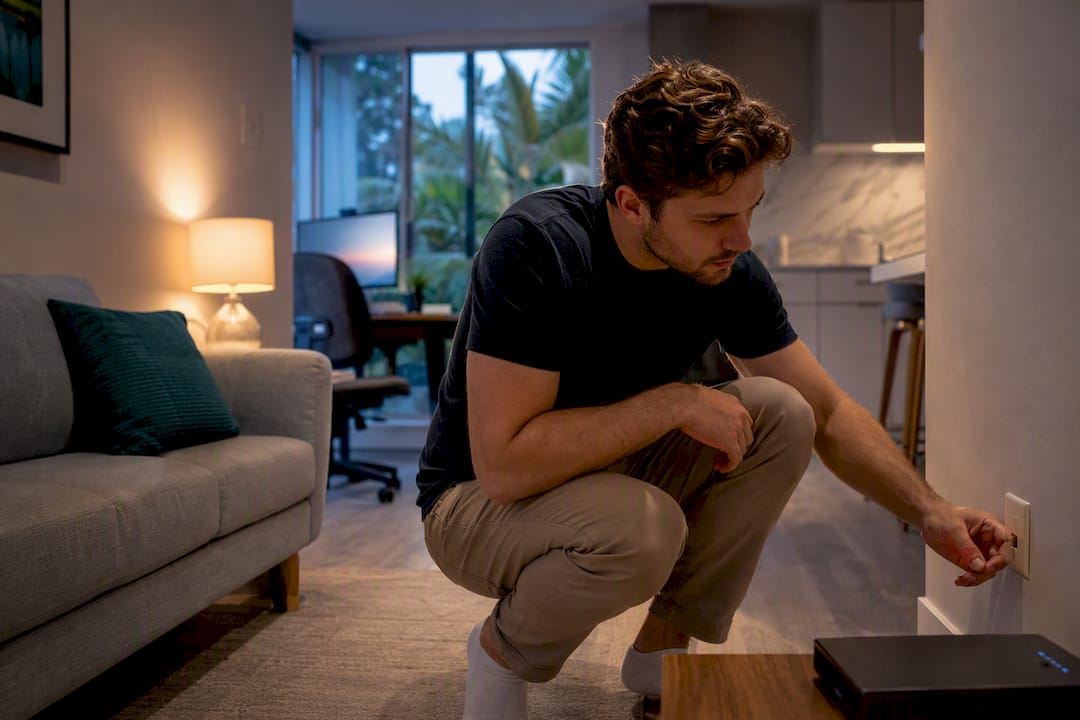
Before you sign anything or schedule a technician, check provider availability for your exact street address and unit number, then ask the leasing office whether internet comes included or if there are provider restrictions. For speed, one person streaming and working from home is fine at moderate tiers. Couples should aim higher, and households with multiple heavy users need even faster speeds. Do both checks today, before you fall in love with a floor plan you can’t actually get connected.
TL;DR:
- Internet availability in apartments is unit-specific; confirm exact address and ask leasing about provider restrictions before signing.
- Fiber offers the best performance, while cable is most common, and 5G or fixed wireless can provide quick setup if wiring is limited.
- Households with multiple heavy users should aim for plans of 300 Mbps or higher, especially during peak usage times, to ensure stable connections.
- Opt for self-install when wiring is pre-existing, but schedule professional installation two to three weeks in advance if needed for new wiring or fiber setup.
- Securing your Wi-Fi with a strong password, changing default settings, and choosing the right placement prevents security risks unique to dense apartment buildings.
Table of Contents
- Check availability and lease rules before you sign or schedule
- Choose a provider and plan that fits apartment living
- Decide self-install vs. professional installation and when to schedule
- Equipment renters need: modem, gateway, router, and mesh (buy vs rent)
- Step-by-step self-install checklist for move-in day
- Optimize Wi-Fi inside an apartment (router placement, channels, and small-space fixes)
- Troubleshooting common apartment internet issues
- Securing your apartment’s Wi-Fi network
- Handling internet setup when you move between apartments
- Negotiating internet service and finding apartment-specific promotions
- How building materials and layout affect your Wi-Fi
- Cynthia Gardens’ renter-first perspective on internet readiness
- Consider Cynthia Gardens if you want clear internet policies before you sign
- Sources
- FAQ
Check availability and lease rules before you sign or schedule
Internet availability is not building-wide. It’s unit-specific, and providers should be checked at the exact street address and apartment number, not just the zip code. The FCC’s national broadband map is a fine starting point, but treat it as a rough sketch, not a guarantee, since it’s often outdated at the building level.
Before you tour or sign, ask the leasing office these questions directly:
- Is internet included in rent, or billed separately by a provider you choose?
- Does the building use bulk or managed Wi-Fi, and can you opt out for your own provider?
- Are there exclusive marketing agreements that limit which company can install service?
- Will the leasing office allow a technician to access wiring closets or run new cable if needed?
The answers hinge on what’s already run to the unit. Fiber with an ONT, coaxial cable, and existing Ethernet jacks all mean different installation paths, and a building with bulk internet bundled into rent may not let you swap providers at all.
Choose a provider and plan that fits apartment living
Fiber is the strongest option where it’s available: low latency, symmetrical upload and download speeds, and generally the fewest congestion issues in dense buildings. Cable is the most widely available and usually the fastest to activate. DSL is fading and rarely worth choosing if any alternative exists. Fixed wireless and 5G home internet skip wiring entirely and can be running within hours, which matters if your building has provider restrictions or you need service the same day you get keys.
Match speed to how you actually use the internet:
- Solo renter, browsing and streaming: 100 to 200 Mbps
- Couple, remote work plus streaming: 200 to 300 Mbps
- Multiple heavy users, gaming, or large file transfers: 300 Mbps or higher
Speed check: Single-person households generally do fine at moderate tiers, while multi-user apartments should size up and test local performance before committing to a plan.
Before you commit, check the fine print: the promotional rate versus the rate after 12 months, equipment rental fees (often $10 to $15 monthly you can avoid), any data caps, and whether the plan requires a contract at all. Households that stream a lot of 4K or live TV should size their tier around peak usage, not average usage, since live streaming services push meaningfully more bandwidth than standard-definition playback.
Decide self-install vs. professional installation and when to schedule
- Choose self-install if the unit is already wired. Most providers ship a kit and let you activate service immediately through their app or website when a jack or ONT is already live.
- Book a professional technician if new wiring is needed. Fiber ONT installs, dead jacks, or lease rules that mandate a certified installer all require a scheduled visit.
- Schedule early. Aim to book installation two to three weeks before move-in day for a normal window, and push that to four or more weeks during peak moving season, roughly late spring through early fall, or in college towns near a semester start.
- Confirm the appointment window in writing. Save the confirmation email or text; apartment buildings sometimes require you to coordinate technician building access with the leasing office separately.
Equipment renters need: modem, gateway, router, and mesh (buy vs rent)
A modem connects to the provider’s line and translates the signal; a router creates your Wi-Fi network; a gateway combines both in one box, which most providers rent by default. Fiber setups often skip the modem entirely and use an ONT mounted at the wall, which just needs power and account registration to go live.
Ask your ISP whether it allows customer-owned equipment. If it does, buying your own modem or router usually eliminates the $10 to $15 monthly rental fee within a few months.
- One-bedroom apartment: a compact Wi-Fi 6 router is almost always enough coverage.
- Move often: buy rather than rent, since owned gear travels with you and pays for itself.
- Persistent dead zones only: add a mesh node, but don’t buy one preemptively.
Pro Tip: A single Wi-Fi 6 router in a moderate price range typically covers most one-bedroom layouts. Save the mesh system purchase for after you’ve actually confirmed you have a coverage problem.
Step-by-step self-install checklist for move-in day
- Before move-in: confirm provider availability for your address and unit, order the self-install kit, and write down the modem or gateway’s MAC address along with your account number.
- Locate the jack: on move-in day, find the active wall jack or fiber ONT (leasing staff can usually point you to it).
- Connect the hardware: plug the modem or gateway into the jack, power it on, and wait for the lights to stabilize.
- Activate: follow the provider’s app or website activation flow, which typically asks for that MAC address and account number you noted earlier.
- Connect your router (if using a separate one) and run a wired speed test before relying on Wi-Fi.
- If activation fails: power-cycle in order, modem off, router off, wait 30 seconds, modem on, wait for stable lights, then router on. Try a different Ethernet cable next. Run the provider’s diagnostic tool before calling support.
Optimize Wi-Fi inside an apartment (router placement, channels, and small-space fixes)
Placement matters more than most renters expect. Set the router centrally, off the floor, and never inside a cabinet or closet, since enclosed spaces trap and weaken the signal. If the only active jack is in a corner bedroom, that’s a real constraint, and it’s worth asking whether an Ethernet run to a more central spot is possible.
- Use 5 GHz or 6 GHz for devices near the router; it’s faster but doesn’t travel through walls as well.
- Switch to 2.4 GHz for range across the apartment, especially for a device in a back room.
- Change your Wi-Fi channel if your router’s admin panel shows heavy overlap. Neighboring networks in dense buildings crowd the same channels, which quietly kills speed even when your own connection is fine.
- Add a mesh node only if one room stays weak after you’ve tried repositioning.
Pro Tip: Run Ethernet to your desk or gaming setup even if you rely on Wi-Fi everywhere else. A wired connection sidesteps every apartment interference problem at once.
Troubleshooting common apartment internet issues
Start simple: check the modem and router lights, then run a wired speed test to isolate whether the problem is your Wi-Fi or the incoming connection itself. Power-cycle both devices in order before anything else.
Apartment buildings introduce their own quirks. Shared wiring can mean congestion during peak evening hours, and a dead wall jack sometimes isn’t obvious until you’re actually trying to connect. Test the lobby or a model unit’s Wi-Fi if service seems off building-wide, and ask a neighbor whether they’re seeing the same slowdown. Document recurring problems with dates and speed test results before escalating to the leasing office or your provider.
If you need connectivity while an issue gets sorted, a mobile hotspot or 5G home internet requires no wiring and can be running within minutes as a bridge.
Securing your apartment’s Wi-Fi network
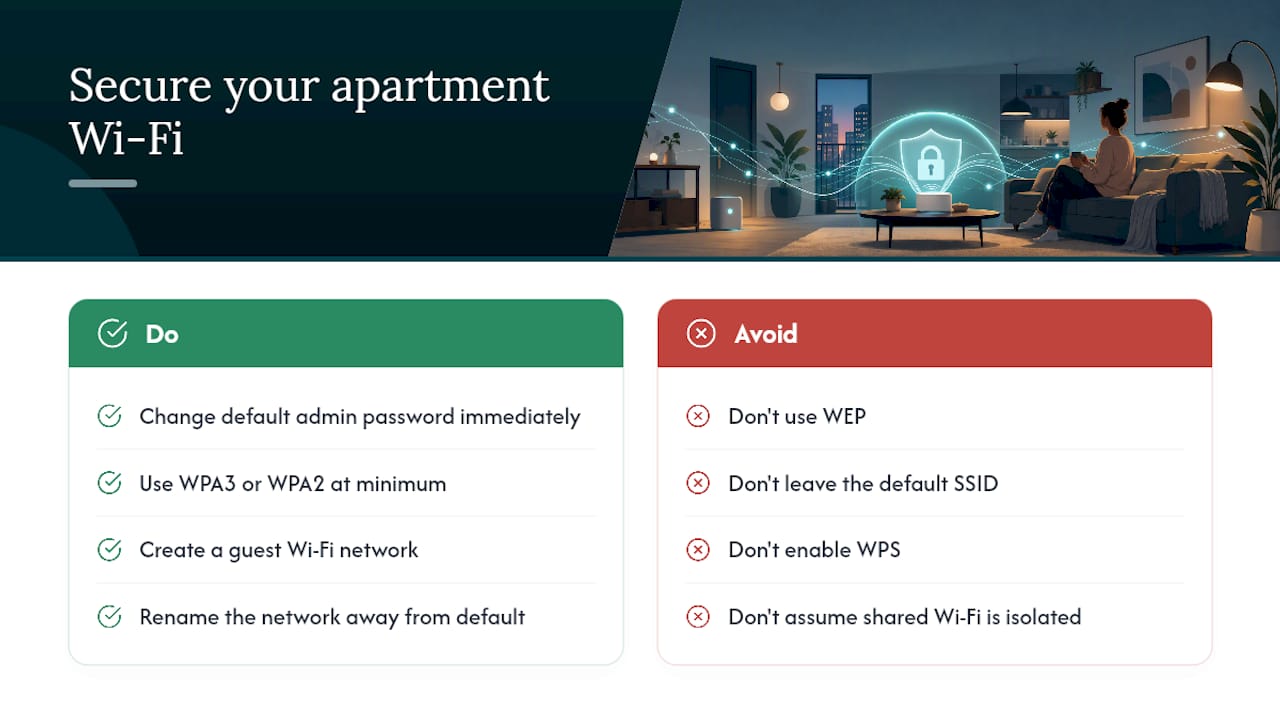
Apartment buildings pack dozens of Wi-Fi networks into a small radius, which makes your network name and password more exposed than a single-family home’s. Start with the basics: change the default admin password on your router immediately, since factory credentials are widely known and published online. Use WPA3 encryption if your router supports it, or WPA2 at minimum. Skip WEP entirely; it’s outdated and crackable in minutes.
Set up a guest network for visitors, smart devices, and anyone crashing on your couch for a weekend. This keeps unfamiliar devices off the same network segment as your laptop and phone, which matters more in apartments where a neighbor’s device could theoretically brute-force a weak signal within range. Most modern routers let you create a guest SSID in a few taps through the companion app.
Rename your network away from the default broadcast name, which often reveals the router brand and model, giving anyone nearby a head start on finding known vulnerabilities. Disable remote management unless you specifically need it, and turn off WPS, the one-touch pairing feature, since it has known security weaknesses.
If your building offers bulk or managed Wi-Fi, ask who else has access to the network administration and whether individual units get any network isolation. Shared building networks without isolation mean a compromised device in another unit could theoretically see traffic on yours. That’s a reasonable question to ask the leasing office before you rely on managed Wi-Fi for anything sensitive, like banking or remote work with confidential files.
Handling internet setup when you move between apartments
Moving to a new apartment usually means starting fresh rather than simply transferring service, especially if you’re switching neighborhoods or providers aren’t identical between buildings. If your current provider serves both addresses, call ahead of your move date and ask about a transfer, which is often faster than a brand-new signup since your account and billing history already exist.
If your new building uses a different provider, or the old one doesn’t serve the new address, you’re setting up an account from scratch. Start the same availability check described earlier the moment you have a lease signed, not the week you’re packing boxes. Providers sometimes let you schedule installation for your move-in date weeks in advance, which avoids a gap in service.
Watch for early termination fees on your current plan if you’re mid-contract. Many providers waive these when you show proof you’re moving outside their service area, but you typically have to ask and provide documentation rather than assuming it happens automatically.
Keep your old equipment in mind, too. If you own your modem and router, they usually work at the new address as long as the connection type matches, cable to cable, fiber to fiber. If you’re renting equipment, coordinate the return with your final bill so you’re not charged an unreturned-equipment fee weeks after you’ve already moved.
Negotiating internet service and finding apartment-specific promotions
Providers negotiate more than most renters assume, especially at signup and at contract renewal. Call rather than sign up online if you want leverage. Retention departments often have discretion to match a competitor’s promotional rate or extend a promo period, but only if you ask directly and mention you’re comparing options.
New-customer promotions are usually the best rates a provider offers, which means switching providers periodically, when your lease allows it, can beat loyalty. Bundling internet with a mobile plan sometimes unlocks a discount too, particularly with providers that also run wireless service.
Ask the leasing office whether the building has a negotiated rate with a specific provider for residents. Some communities arrange discounted installation or a reduced monthly rate as a resident perk, which won’t show up on the provider’s public website. It’s worth a direct question during your tour, not an assumption either way.
How building materials and layout affect your Wi-Fi
Concrete, brick, and metal studs, all common in mid-rise and high-rise apartment construction, block Wi-Fi signals far more aggressively than the drywall and wood framing in most single-family homes. If your router sits in a living room with a poured concrete wall between it and your bedroom, that’s likely your dead zone before you even test anything.
Layout compounds the problem. A long, narrow unit or one with the only cable or fiber jack tucked in a far corner forces an awkward router placement that can’t cover the whole space evenly. Small fixes like repositioning the router centrally, switching channels, or adding a single mesh point solve most of these cases without new wiring.
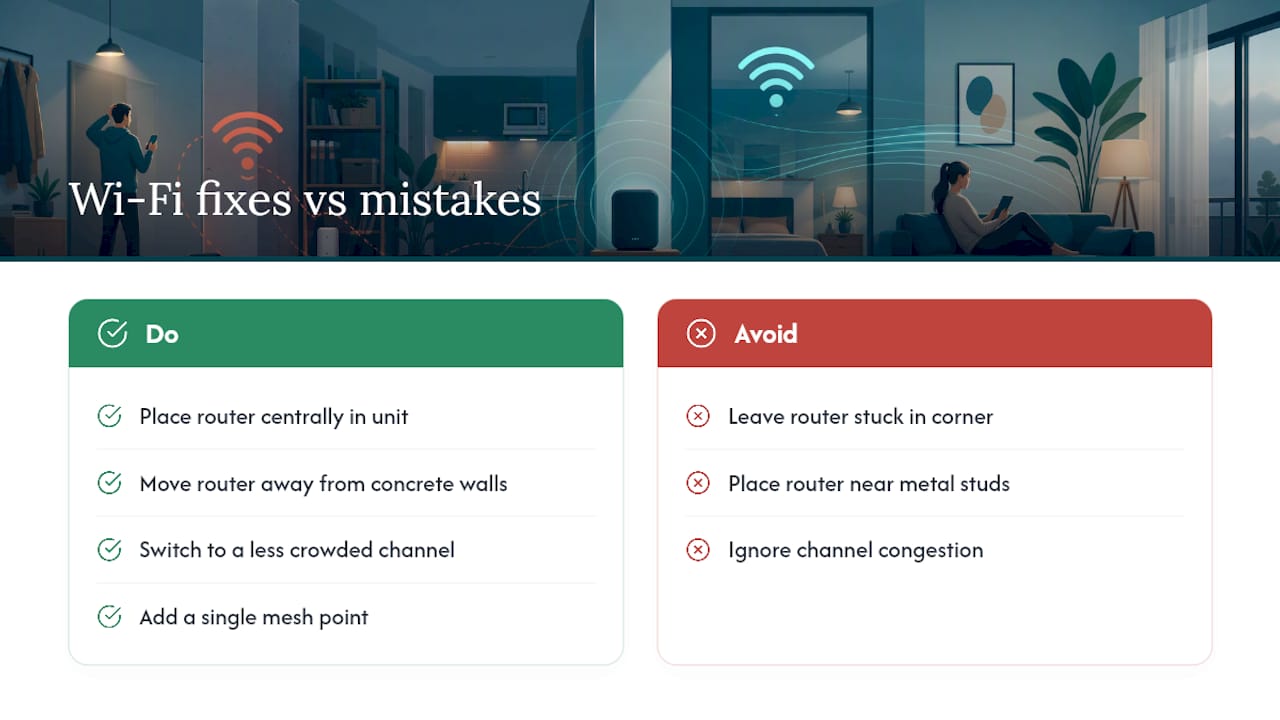
Dense buildings also mean dozens of overlapping networks fighting for the same 2.4 GHz channels, which is a congestion problem, not a materials problem, but it feels identical to the renter experiencing it. Checking your router’s channel and switching to a less crowded one often recovers speed that seemed lost to “bad building Wi-Fi.”
Cynthia Gardens’ renter-first perspective on internet readiness
We think internet readiness should be part of every apartment tour, not an afterthought discovered after signing. That’s why our virtual tours and interactive property map let prospects see unit layouts and wiring setup before committing to anything. If you’re touring with us, ask our leasing team directly about included services and provider options. We’d rather you know exactly what you’re getting into on move-in day than find out the hard way.
— Ayman
Consider Cynthia Gardens if you want clear internet policies before you sign
Most apartment hunts leave the internet question for later, which is exactly how renters end up stuck with a bulk provider they didn’t choose or a wiring surprise on move-in day. Cynthia Gardens handles it differently: our leasing tools show utility and wiring details up front, so you know what you’re working with before you commit to a one-bedroom unit in Boca Raton.
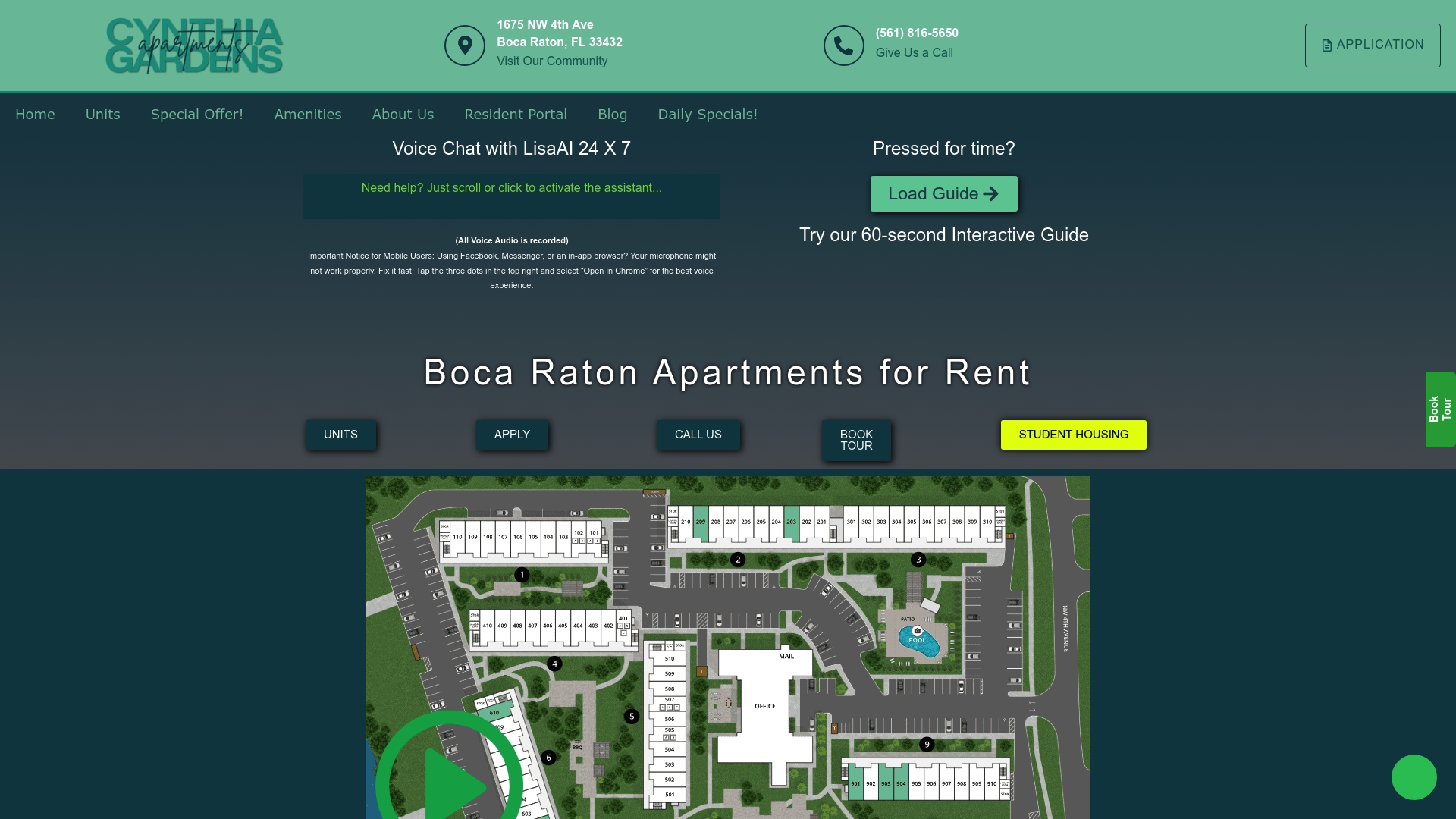
Our virtual tours let you check jack placement and layout from your phone, and our leasing team will answer provider and utility questions directly instead of leaving you guessing. If you’re pet-friendly, budget-conscious, or just done with hidden fees, explore our Boca Raton apartment listings and ask about internet readiness during your tour.
Sources
The provider-specific facts and activation steps in this guide come from a handful of reliable references worth bookmarking if you hit a snag mid-setup:
- Highspeedinternet
- How to Set Up Internet for an Apartment | Spectrum
- How to fix slow Wi‑Fi in an apartment | CNET
Use these for provider-specific instructions, since activation flows vary slightly between companies.
FAQ
How does Wi-Fi get set up in an apartment?
You connect a router to your modem or gateway (or directly to a fiber ONT), then create a network name and password through the device’s app or web interface, typically finishing activation within 15 to 30 minutes on a pre-wired unit.
Can you install your own internet in an apartment?
Yes, most providers offer self-install kits for pre-wired units that let you activate service through their app without a technician visit, though new wiring or fiber ONT installs usually require a professional.
Is $80 a month a lot for internet?
It depends on the tier and household size; pricing varies widely by market and provider, with mid-range plans often around 300 Mbps, but a single renter needing only 100 to 200 Mbps can often find service for less.
What is the best internet for apartments?
Fiber is generally the strongest choice where available for its low latency and reliable speeds, though cable and 5G home internet are solid alternatives when fiber isn’t offered at your address; checking availability at any building you’re touring before signing avoids surprises.