
For a single remote worker, aim for a moderate to high download speed and adequate upload depending on your tasks. A household with two or more people on calls at once should consider higher download and upload speeds accordingly. Heavy users running cloud VDI or streaming 4K during calls should consider substantial bandwidth, ideally symmetric connections. One catch: upload speed and latency usually decide whether your Zoom call looks professional, not your download number.
TL;DR:
- For two or more people on video calls simultaneously, a household should consider at least 100 Mbps download and 20 Mbps upload to ensure smooth performance.
- Cloud VDI, 4K streaming, and large file uploads require fiber plans with symmetric speeds of 200 Mbps or more, especially when multiple tasks run together.
- A single 1080p Zoom or Google Meet call generally consumes less than 4 Mbps upload, but multiple streams and background activities demand higher upload capacity.
- Upload speed, latency, and jitter are more critical to video call quality than download speed, with low latency under 50 milliseconds preventing lag and cutouts.
- Testing wired connections and asking about actual upload and latency before moving into a new apartment are vital steps to verify the internet’s suitability for remote work.
Table of Contents
- How to Estimate Bandwidth Based on Users, Devices, and Tasks
- Download and Upload Speed Ranges for Specific Remote-Work Activities
- Why Upload Speed, Latency, and Jitter Affect Meeting and Cloud-App Quality
- How to Run Speed and Latency Tests and Interpret the Results
- Practical Fixes Renters and Remote Workers Can Try Before Upgrading Their Plan
- Why You Can Trust This Guide: Resources for Renters
- What Actually Matters When You’re Choosing a Connection for Remote Work
- FAQ
- Sources
How to Estimate Bandwidth Based on Users, Devices, and Tasks
Most people size their internet plan around the wrong number. Download speed gets all the marketing attention, but the real question is what your household needs to run at the same time, device by device, task by task.
Start by counting concurrent devices, not total devices. A laptop idling in another room barely matters; a laptop on a video call, a phone streaming music, and a smart TV running in the background all pull bandwidth simultaneously.
Three rough profiles help frame this:
- Light profile: Email, chat apps, and occasional 720p calls. One person rarely needs more than 25 to 50 Mbps download and 5 Mbps upload.
- Moderate profile: Daily 1080p video calls, screen sharing, and cloud app use (Google Workspace, Microsoft 365). Expect to need 50 to 100 Mbps download and 10 to 20 Mbps upload.
- Heavy profile: Multiple simultaneous callers, large file transfers, cloud VDI sessions, or 4K streaming layered on top of work traffic. This pushes requirements to 200 Mbps or more download, with upload becoming the limiting factor.
A few worked examples make the math concrete. A solo remote worker running one 1080p Zoom call plus email and Slack rarely exceeds 10 Mbps download and 4 Mbps upload in actual use, but a 50 to 100 Mbps plan absorbs normal variability without a second thought.
Two people on simultaneous HD video calls (say, a partner on Teams and you on Meet) roughly double the baseline: around 8 Mbps combined download, 7 to 8 Mbps combined upload for the calls themselves. Add headroom for two laptops syncing cloud files in the background, and a 100 Mbps download, 20 Mbps upload connection covers it comfortably.
A family streaming 4K video on a smart TV while one adult works a full day of back-to-back video calls needs more separation. 4K streaming alone can use 15 to 25 Mbps, and a single call rarely needs more than 4 Mbps upload, but combined with occasional large file uploads, a 300 Mbps download plan with at least 20 Mbps upload avoids the afternoon slowdown that ruins a client call.
Download and Upload Speed Ranges for Specific Remote-Work Activities
Different remote-work tasks pull wildly different amounts of bandwidth, and lumping them into one generic “fast internet” recommendation hides the detail that actually matters: your upload ceiling.
Zoom’s own bandwidth guidance puts 1080p calling at roughly 3.8 Mbps upload and 3.0 Mbps download, and Google’s network preparation guidance for Meet recommends up to about 3.6 Mbps per participant for 1080p, while also advising against heavily congested 2.4 GHz Wi-Fi for meeting rooms. Those numbers look tiny next to a 300 Mbps plan, which is exactly the point: a single call rarely saturates even a modest connection. The problem shows up when several tasks stack up at once, or when upload capacity, which is almost always smaller than download on standard cable or DSL plans, gets split across multiple outgoing streams.
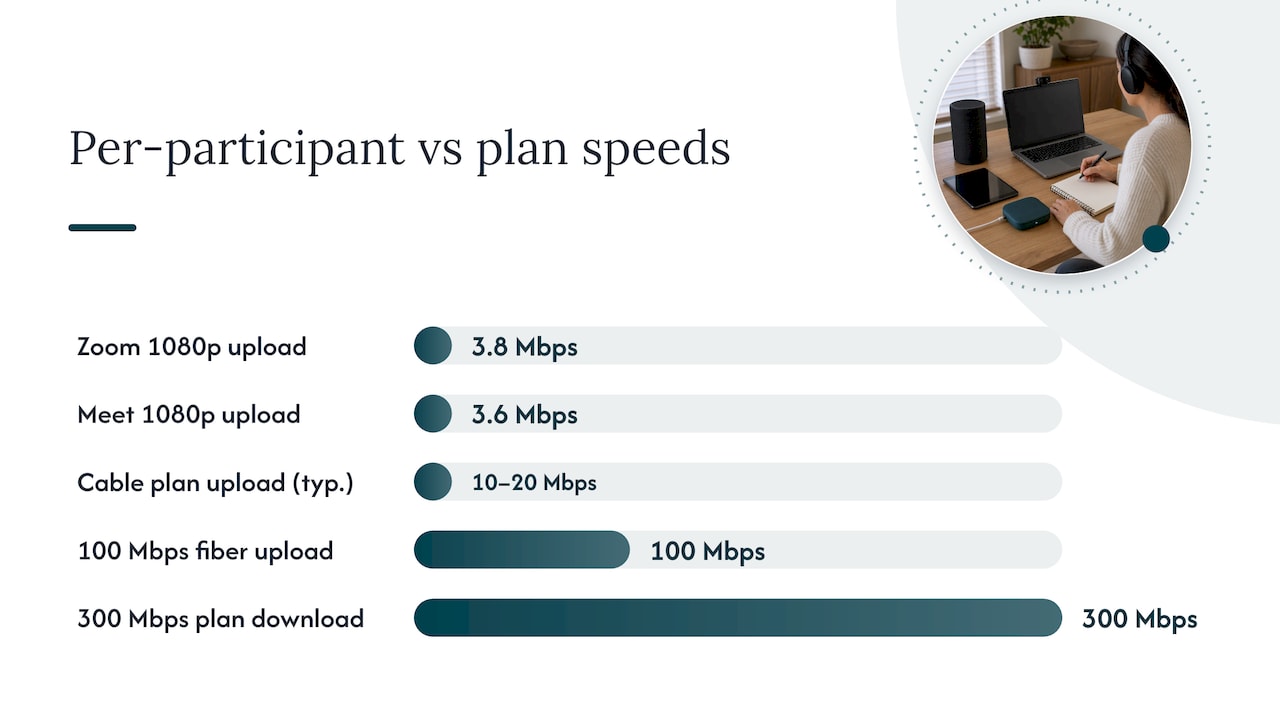
This is where symmetric plans, common on fiber, earn their premium. A 100 Mbps symmetric fiber connection gives you 100 Mbps upload as well as download, while a 100 Mbps cable plan might offer only 10 to 20 Mbps upload. If your household regularly has two or more people uploading large files, hosting webinars, or running simultaneous HD calls, upload parity matters more than a bigger download number.
A few practical notes when sizing a plan around this table:
- Peak-hour congestion on shared cable networks can reduce real-world throughput, so plan for 30% to 50% more capacity than your calculated minimum.
- Screen sharing adds on top of call bandwidth, it does not replace it, so budget for both simultaneously.
- Cloud VDI sessions are sensitive to both bandwidth and latency, so a fast but high-latency connection can still feel sluggish.
The FCC’s household broadband guide frames this with basic, medium, and advanced tiers, and explicitly flags upload speed and latency as the factors that matter most for videoconferencing and cloud apps, not just the headline download number advertised on your bill.
Why Upload Speed, Latency, and Jitter Affect Meeting and Cloud-App Quality
Download speed gets the marketing, but three other metrics decide whether a call looks professional or glitchy.
Upload speed is what you send out: your camera feed, your microphone audio, your screen share. Latency is the round-trip delay between your device and the server, measured in milliseconds; anything consistently under 50 ms feels instant, while spikes above 150 ms cause the awkward talk-over-each-other lag on calls. Jitter is the variation in that delay from one packet to the next, and it is often more disruptive than latency itself because it causes audio to cut in and out unpredictably. Packet loss means data never arrives at all, forcing the app to guess or freeze.
Microsoft’s network guidance for Teams describes adaptive media behavior: Teams can hold HD quality under roughly 1.5 Mbps in some layouts, but when bandwidth tightens, the platform prioritizes audio and steps down video resolution rather than dropping the call outright. That adaptive behavior is common across Zoom, Meet, and Teams, which is why a call rarely disconnects outright when your connection weakens, it just gets blurrier and choppier first.
- Audio freezes or garbles: usually jitter or packet loss, not raw speed.
- Video drops to a blurry, low-resolution feed: the app is protecting the audio stream by reducing video.
- Noticeable delay before someone responds: latency, often from a congested network or a distant server.
For most remote workers, a plan with slightly lower download speed but strong upload and low latency outperforms a flashier high-download plan with poor upload. A wired Ethernet connection to your primary work device is the single most reliable way to cut both latency and jitter.
How to Run Speed and Latency Tests and Interpret the Results
Before blaming your ISP, run a structured test. Advertised “up to” speeds are a ceiling, not a promise, and the only way to know your real numbers is to measure them yourself.
- Connect a laptop or desktop directly to your modem or router with an Ethernet cable, bypassing Wi-Fi entirely for the baseline test.
- Run at least three tests at different times: once in the morning, once during your typical work hours, and once during evening peak hours when neighbors are also online.
- Check both download and upload numbers, not just download, and note the latency (often labeled “ping”) and jitter if the tool reports it.
- Repeat the same test over Wi-Fi from the room where you actually work, to see how much the wireless connection costs you compared to wired.
- Record each result with a timestamp so you have evidence if you need to contact your ISP about underperformance.
Ookla’s Speedtest, the M-Lab testing platform, and the FCC’s own speed test all measure the same basic metrics but from different server networks, so running two of them gives you a useful cross-check. A result that is consistently 20% or more below your advertised plan, especially during peak hours, is worth raising with your provider. The FCC’s measuring fixed broadband research has found that latency under load, and the gap between advertised and real-world speeds, varies notably by technology, with fiber and cable generally outperforming DSL.
Practical Fixes Renters and Remote Workers Can Try Before Upgrading Their Plan
Before paying for a bigger plan, rule out the fixes that cost nothing or almost nothing.
Plugging your work computer directly into the router with an Ethernet cable is the highest-impact change available to most renters. Wired connections avoid the interference, distance, and congestion that plague Wi-Fi, which typically means lower latency and far less jitter, even if the advertised speed number stays the same. In apartment buildings especially, where dozens of networks compete for the same airwaves, this single change often fixes call quality more than any plan upgrade would.
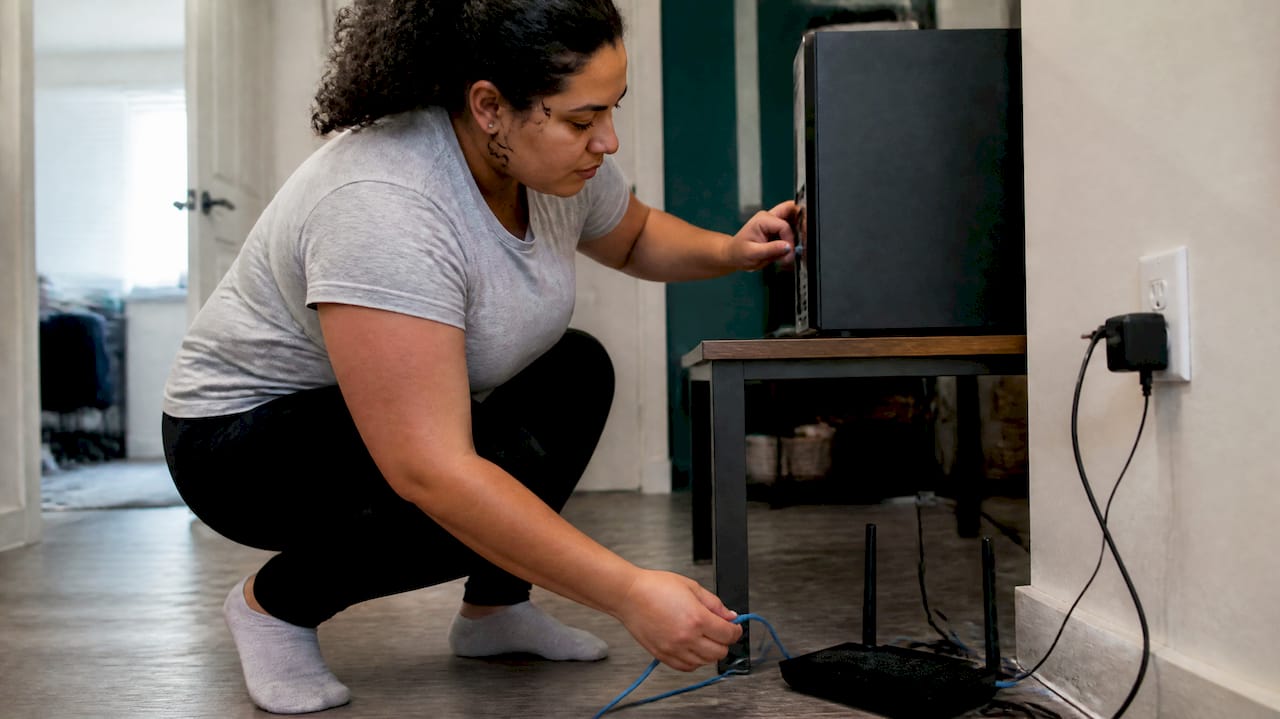
If Ethernet to every device is not practical, router placement and maintenance still matter. Keep the router elevated, away from walls and appliances, and centrally located relative to where you work. Update router firmware periodically, since manufacturers patch performance and security issues regularly. Switch your primary work device to the 5 GHz band instead of 2.4 GHz: 5 GHz carries less range but far less congestion in a crowded apartment complex. If your unit has dead zones, a mesh Wi-Fi system spreads coverage more evenly than range extenders, which often just repeat a weak signal more loudly.
On the network settings side, a few adjustments help without requiring a new plan:
- Enable Quality of Service (QoS) on your router if it supports it, but test with it both on and off since poorly tuned QoS can sometimes throttle video traffic unintentionally.
- Use split-tunnel VPN configurations when your company allows it, so only work traffic routes through the corporate VPN while streaming and other traffic uses your normal connection.
- Disable aggressive router-level QoS rules specifically if they are deprioritizing Meet, Zoom, or Teams traffic by mistake, which happens more often than most people expect.
Pro Tip: Run your video call test wired first. If quality is still poor over Ethernet, the problem is your plan, not your Wi-Fi, and no router tweak will fix it.
If wired testing still shows weak upload or high latency after these changes, it is a plan or infrastructure issue. Checking what to verify about an apartment’s internet setup before moving in can save a lot of troubleshooting later, since building wiring and available ISP technology vary more between units than most renters expect.
Why You Can Trust This Guide: Resources for Renters
This guide draws on published platform requirements from Zoom, Google Meet, and Microsoft Teams, along with federal broadband guidance from the FCC and NTIA, to set realistic, verifiable targets rather than rules of thumb pulled from guesswork.
Renters weighing a move while working remotely face a specific problem: you cannot always test an apartment’s actual internet performance before signing a lease. A few resources help close that gap:
- Our guide to choosing ISP plans as a renter walks through how to evaluate upload versus download before committing to a unit.
- Our work-from-home apartment setup ideas cover desk placement and wiring considerations specific to apartment layouts.
- A residential lease guide outlines what to check during the lease process, including service availability questions worth raising before signing.
What Actually Matters When You’re Choosing a Connection for Remote Work
The conventional advice to chase the biggest download number you can afford gets the priority backwards. A 500 Mbps plan with weak upload and inconsistent latency will make you look worse on a client call than a 100 Mbps symmetric fiber line that holds steady.
What gets underrated is testing before you commit, whether that means testing your current apartment’s Wi-Fi in the actual room you work from, or asking pointed questions about upload speed and latency before signing a lease somewhere new. Marketing materials talk about download speed because it is the bigger, more impressive number. Your meetings do not care about that number nearly as much as they care about whether your upload stream holds steady for forty-five minutes straight.
If you take one thing from this guide, let it be this: test wired, test at peak hours, and treat upload and latency as the numbers that decide whether remote work actually feels smooth day to day. Everything else is secondary.
— Ayman
FAQ
What is the minimum internet speed for working from home?
For light tasks like email and occasional video calls, 25 to 50 Mbps download and 5 Mbps upload is typically enough. Anyone doing daily HD video calls, screen sharing, or cloud app work should target at least 50 to 100 Mbps download with 10 to 20 Mbps upload for consistent performance.
How much upload speed do I need for Zoom calls?
Zoom recommends roughly 3.8 Mbps upload for 1080p video calling, which is far lower than most home plans provide. The real risk is not raw upload speed but inconsistent upload performance caused by congestion or weak Wi-Fi, which shows up as frozen video or garbled audio even on a fast-rated connection.
Is fiber internet better than cable for remote work?
Fiber typically offers symmetric upload and download speeds, meaning your upload matches your download, while cable plans usually offer much lower upload than download. For remote workers who regularly upload large files or host video calls, that upload parity makes fiber a stronger fit even at the same download speed as a cable plan.
How do I know if my apartment’s internet will support remote work before I move in?
Ask the property or current residents what ISP technology serves the building, fiber, cable, or DSL, since that affects both speed and latency consistency. Tools like Ookla’s Speedtest or the FCC’s speed test can confirm actual performance once you have access, and reviewing a renter’s internet setup checklist before signing helps you ask the right questions in advance.
Does a VPN slow down my internet speed for remote work?
Yes, a VPN typically adds some latency and can reduce throughput because traffic routes through an additional server before reaching its destination. Split-tunnel VPN configurations, when your employer allows them, let only work traffic go through the VPN while other traffic uses your normal connection directly, reducing the overall impact.
Sources
- Broadband service for the home: a consumer’s guide (FCC)
- Examine network requirements for Microsoft Teams (Microsoft Learn)
- Prepare your network for Meet meetings & live streams (Google Workspace Admin Help)